
Update the Listenbox desktop app
By Listenbox
Published · Updated
How do I update the Listenbox desktop app?
On Mac, choose Check for Updates… from the Listenbox menu. On Windows, open Settings → Updates and choose Check for Updates…. Follow the updater’s installation prompts, then reopen the app. If the updater cannot install the release, use the official installer for your computer instead. Updating keeps your local settings and import progress, and does not take hosted episodes or your podcast feed offline.
Check for an update
On macOS, bring Listenbox to the front, open the Listenbox menu at the top of your screen, and choose Check for Updates….
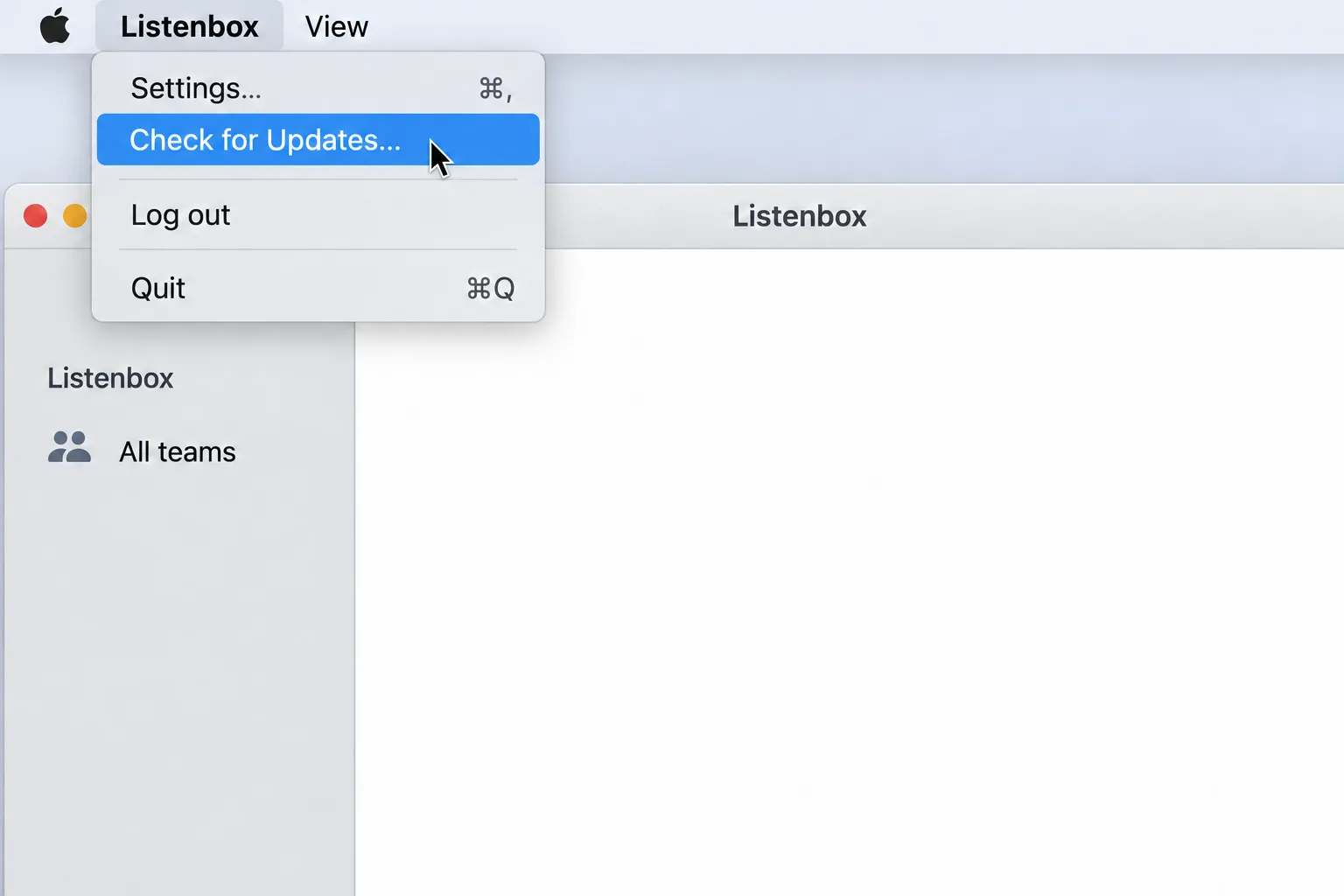
Illustration: Check for Updates in the macOS app menu.
On Windows, bring Listenbox to the front and press Ctrl + , to open Settings. In Updates, choose Check for Updates…. You can also open Settings… from the app's Listenbox menu.
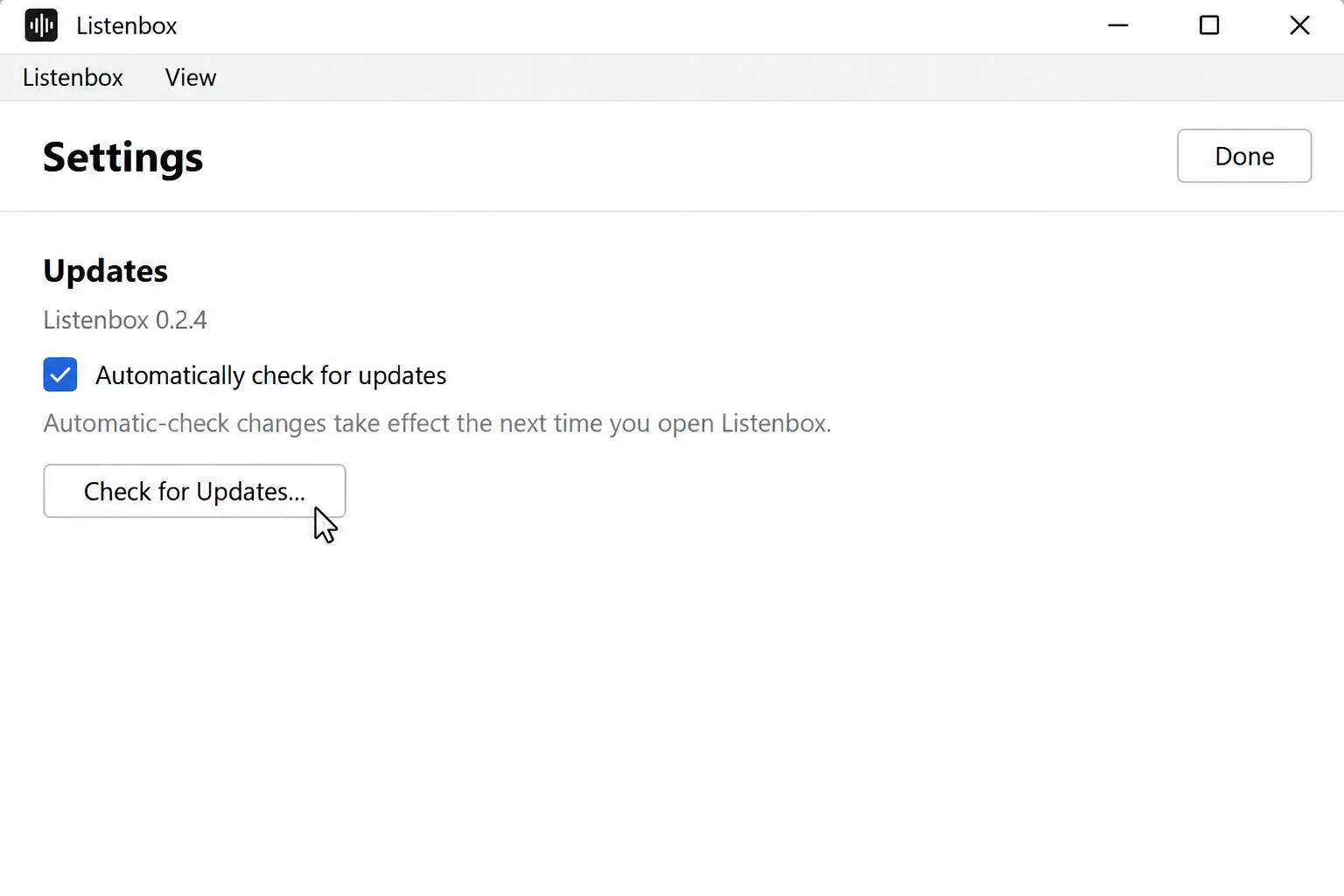
Illustration: Check for Updates in Windows Settings.
Install the update
If an update is available, follow the update window's prompts to download and install it. Let Listenbox finish closing when the updater asks to restart the app.
After installation, reopen Listenbox if needed.
On macOS, open Settings with ⌘ + ,, then check the version shown under Updates.
On Windows, open Settings with Ctrl + ,, then check the version shown under Updates.
Select your podcast and choose Sync now to continue importing.
If the updater says you are already up to date, you can keep using the app.
Check for updates automatically
In Settings → Updates, enable Automatically check for updates to check for new releases while Listenbox is running.
On Windows, changes to this setting take effect the next time you open the app.
On macOS, you can also enable Automatically download and install updates in the same section.
If the update cannot be installed
- Quit Listenbox from its menu bar icon on macOS. Closing the app's window leaves Listenbox running in the background.
- Download the matching installer from the
official Listenbox releases.
Choose the macOS Apple Silicon
.dmg. - Open the
.dmg, drag Listenbox into Applications, and choose Replace. - Reopen Listenbox and check its version in Settings → Updates.
- Quit Listenbox from its system tray icon on Windows. Closing the app's window leaves Listenbox running in the background.
- Download the matching installer from the official Listenbox releases. Choose the Windows x64 installer for an Intel or AMD PC, or the Windows ARM64 installer for an ARM PC. Check Settings → System → About → System type if you are unsure.
- Run the new installer.
- Reopen Listenbox and check its version in Settings → Updates.
Install over the existing app to keep your local settings and unfinished import progress. Your hosted podcasts stay in your Listenbox account.
If you still cannot update, email hello@listenbox.app with your operating system, app version or installer filename, and the error message.